
Importing Data Using phpMyAdmin
PurpleXtra is hosted on Hostinger. Here's the process for uploading content to the site.
Login to https://auth.hostinger.com/uk/login Note! the login process requires an OTP code as well as a username and password.
Carry out the following steps to get into phpMyAdmin:
1.Once logged in on the left hand side select Account Sharing
2.Select Manage services which is located on the right hand side
3.On the right hand side where you see CPanel Hosting Gold select Manage
4.You will now be in something called the Dashboard
5.Select the large icon phpMyAdmin and if successful will show a list of databases
6.Click Login to cPanel this will open another browser tab which is called cPanel - Tools
7.Scroll select phpMyAdmin and if successful will show a list of databases
8.Open database called purple66_purplextra and this will show a list of all our tables
9.Select the table you want to work on, for example diag_france this type of table corresponds to the current year.
10.Rename this table to keep it safe, for example: diag_france_original
11.Copy STRUCTURE ONLY back to original name: diag_france
12.Import the table into diag_france
13.Rename diag_france_all to diag_france_all_original
14.Copy STRUCTURE ONLY back to original name: diag_france_all
15.Using an SQL query copy diag_france into diag_france_all
16.See below if you are having have difficulty importing the data.
Note! You may receive the following error when importing large amounts data.
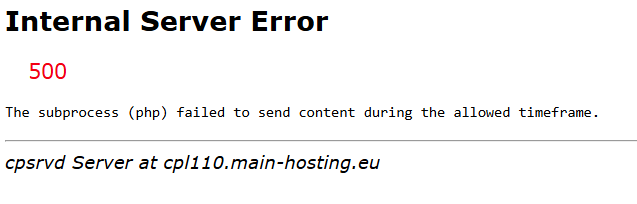
Compress (zip) the CSV and try again by modifying the export and import parameters:
1.Select Custom - display all possible options under Export method:
2.Select CSV under Format:
3.Select gzipped under Save output to a file, Output:, Compression:
4.Then click on Export which saves the file to your downloads folder
Modify the import parameters:
1.Disable - Allow the interruption of an import in case the script detects it is close to the PHP timeout limit
2.Skip this number of queries (for SQL) starting from the first one: (this must be set to 1 otherwise the column names will be imported)
3.Disable - Enable foreign key checks
4.A recommended way to import the data is to use temporary tables (ensuring data integrity) - import the single year and then check before copying the data over, Example of copy SQL query: INSERT INTO `diag_france_all`(`year`, `serial`, `region`, `code`, `cases`) SELECT * FROM `diag_france_all_gary_import_temp`;
Topic last reviewed: 25/07/25