
Importing Large SQL Tables
PurpleXtra’s database is hosted on Hostinger. This short tutorial explains how to upload large content efficiently and avoid phpMyAdmin timeout issues. The final section covers how to revert the changes:
How to Create a Folder and Upload an example.sql File
Creating a Database User
Allocate User Permissions
Importing example.sql to Hostinger Using cPanel Terminal
How to Start Hostinger's phpMyAdmin Web App
Deleting the Created User and Associated Upload Folder
To begin with login to https://auth.hostinger.com/uk/login Note! the login process requires an OTP code as well as a username and password.
How to Create a Folder and Upload an example.sql File
1.Once logged in on the left hand side select Account Sharing
2.Select Manage services which is located on the right hand side
3.On the right hand side where you see CPanel Hosting Gold select Manage
4.You will now be in something called the Dashboard
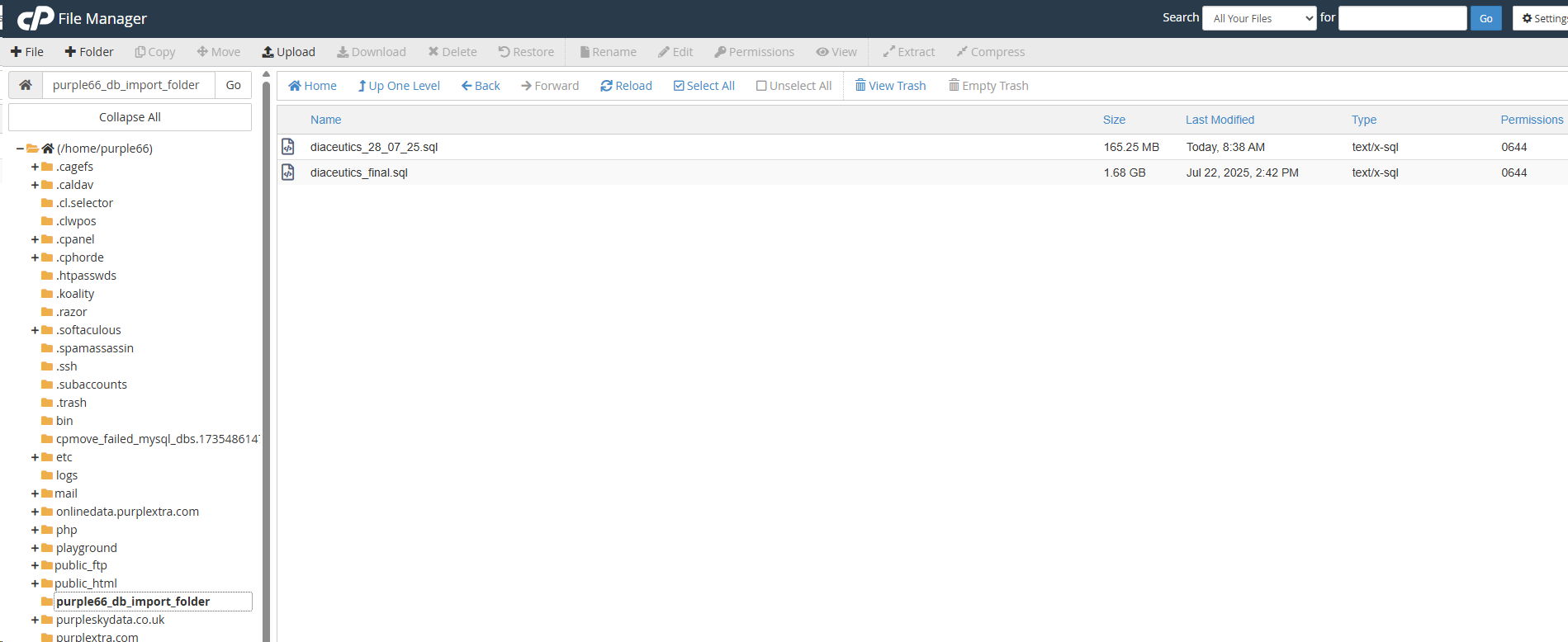
5.Select Open File Manager and create a new folder called purple66_db_import_folder
6.Upload your SQL files by selecting Upload from the File Manager main menu and follow the on-screen instructions. You’ll see a result similar to this, indicating that a couple of files were uploaded successfully.
Creating a Database User
1.From the Hostinger Dashboard
2.Select Login to cPanel
3.Select Manage My Databases
4.Scroll down and enter a new database username uploader. It will automatically be prefixed with purple66_, resulting in purple66_uploader
5.Next set the password and then click on Create User and if successful a confirmation message will appear You have successfully created a database user named “purple66_uploader”
6.Click on Go back taking you back to Manage My Databases
Allocate User Permissions
1.On the Manage My Databases, webpage locate the section titled Add User To Database
2.From the drop down menus select your user and database.
3.Select Add and select then select ALL PRIVILEGES and then Make Changes. A confirmation message appears in the top right corner.
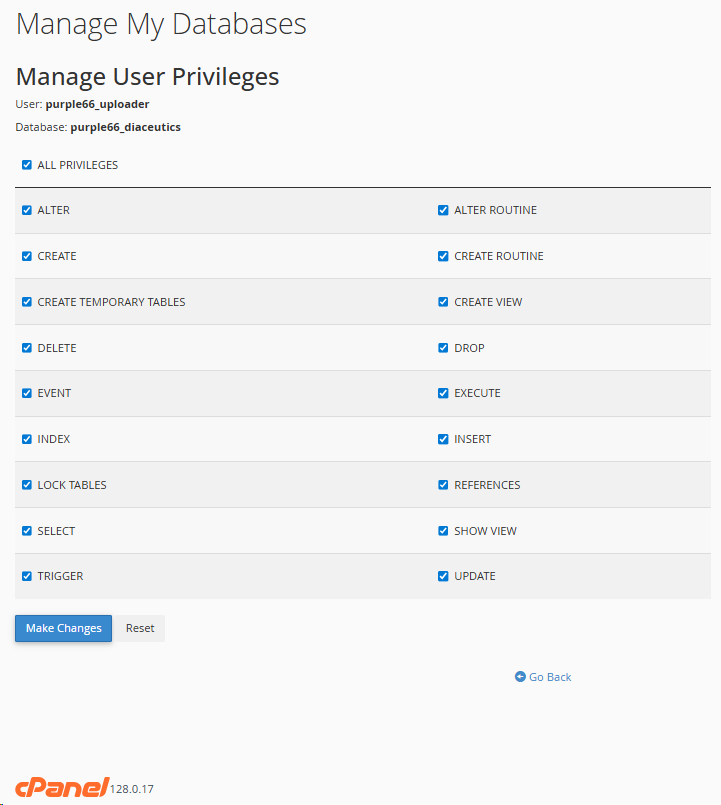
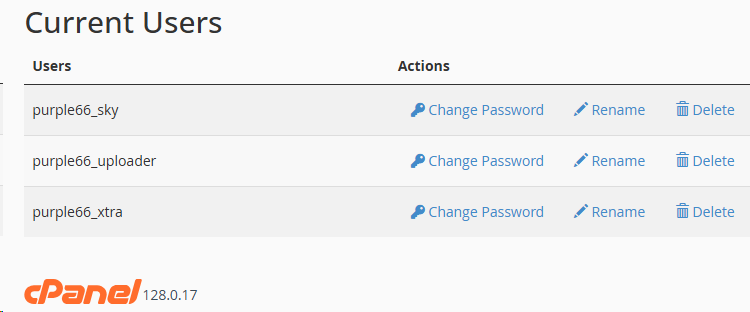
4. Click Go back and review Privileged Users under section Current Databases. Tip - The Privileged Users column can be sorted if clicked.

Importing example.sql to Hostinger Using cPanel Terminal
1.Once logged in on the left hand side select Account Sharing
2.Select Manage services which is located on the right hand side
3.On the right hand side where you see CPanel Hosting Gold select Manage
4.You will now be in something called the Dashboard
5.Click Login to cPanel this will open another browser tab called cPanel - Tools
6.Scroll down to the Advance section and click on Terminal
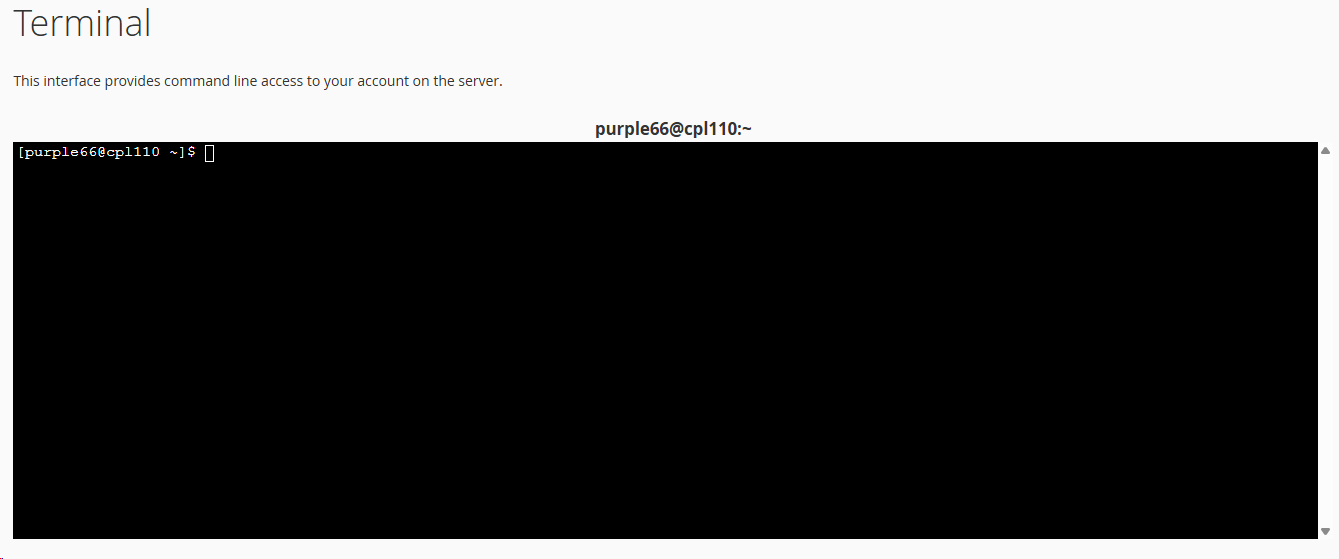
7.The command line structure for importing an SQL file is:
mysql -p -u user_name database_name < /home/purple66/purple66_db_import_folder/example.sql
(replace ‘user_name’, ‘database_name’, and ‘example_file.sql’ with the actual name.)
For example:
mysql -p -u purple66_uploader purple66_diaceutics < /home/purple66/purple66_db_import_folder/diaceutics_final.sql
8.The system will ask for the database user password, and then the database will be imported. Note! the password is invisible!
After the password has been enter the system starts to import the SQL table, the system not show this but will appear to hang after Enter password: command so just wait until it finishes:
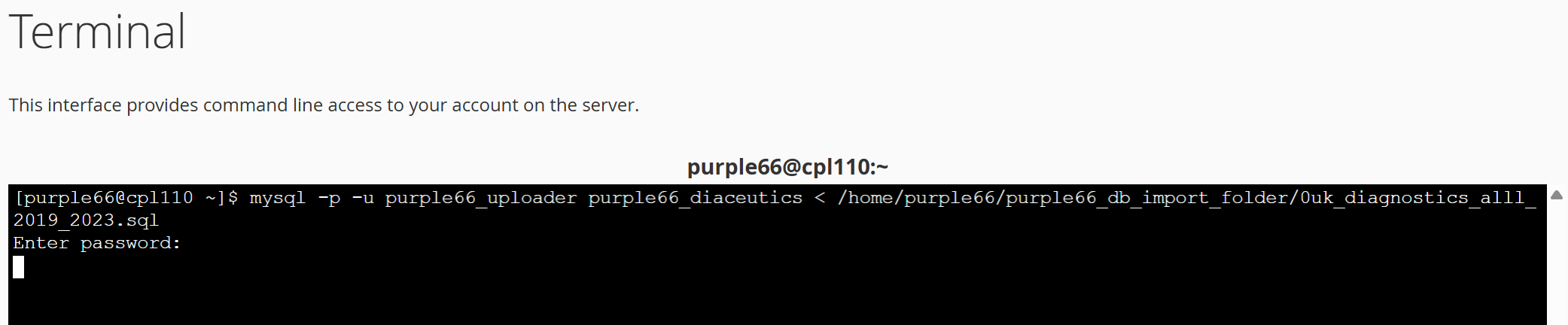
If the user privileges / permissions have been incorrectly assigned you will receive an access denied message.
When the import has been successfully imported the system returns to the command prompt:
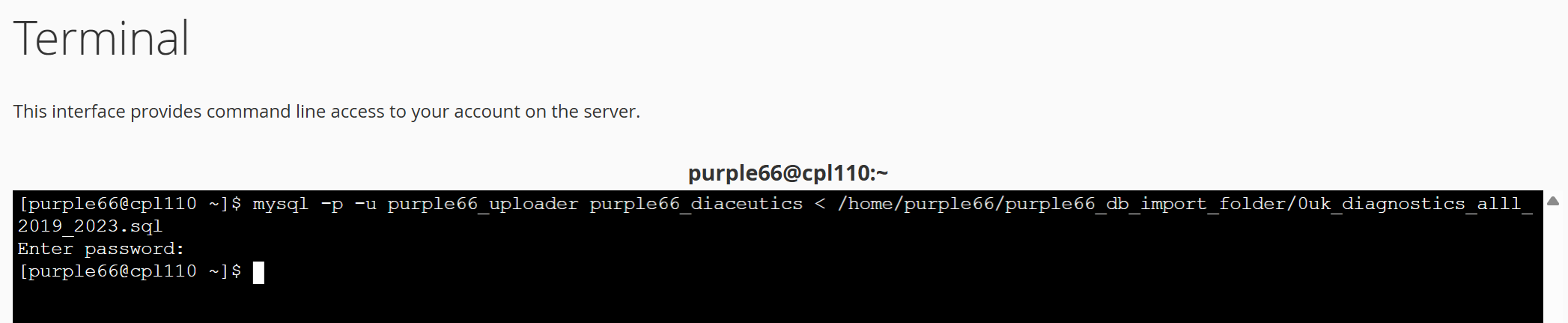
How to Start Hostinger's phpMyAdmin Web App
1.Assuming you are already logged into Hostinger and are at the Dashboard
2.Click Login to cPanel this will open another browser tab called cPanel - Tools
3.Scroll select phpMyAdmin and if successful will show a list of databases
Deleting the Created User and Associated Upload Folder
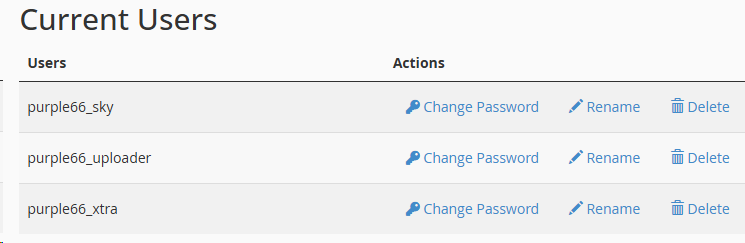
1.Log into cPanel if not already in - Manage My Databases - Current Users delete the user purple66_uploader
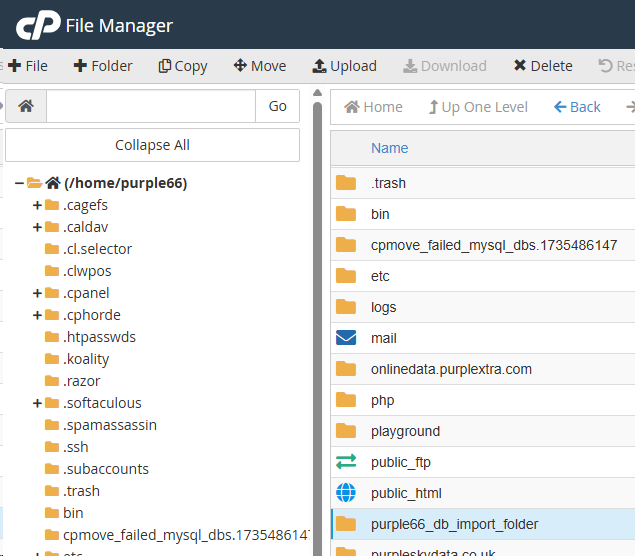
2.In File Manager, locate and delete the folder that was created earlier: purple66_db_import_folder
No fuss, no hassle. That’s all there is to it!
Topic last reviewed: 28/07/25