
Option 2 Command Line
Step-by-Step Guide to Importing Large MySQL Databases into WampServer's phpMyAdmin
In this short tutorial, I will show you how to import a large database into phpMyAdmin.
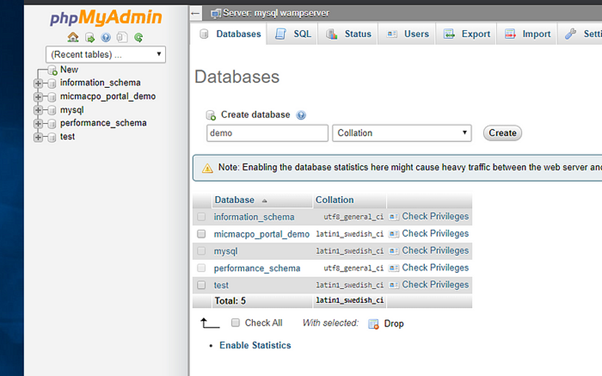
First, you have two options: use an existing database or create a new one. Going forward will we be using a fresh database. Here is an example how to create one called demo, just remember to press Create and it will generate an empty database.
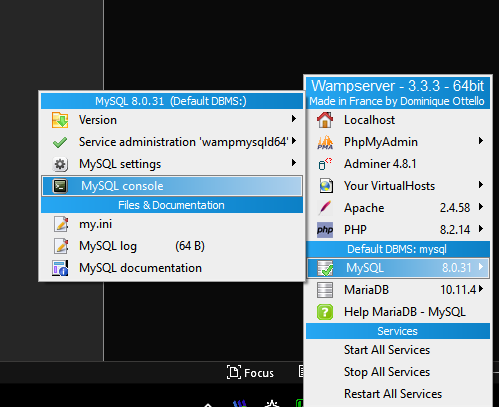
After creating the database, you need to open the MySQL command line console from WampServer Windows tray icon.
To gain access to the console left click the WampServer tray icon, hoover mouse over MySQL and in the sub menu that pops out select MySQL console
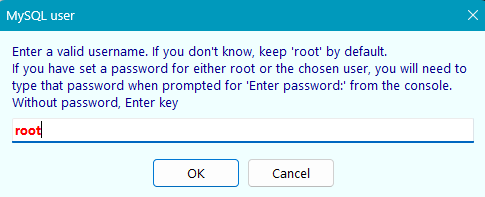
A new Window pops up, click OK to this.
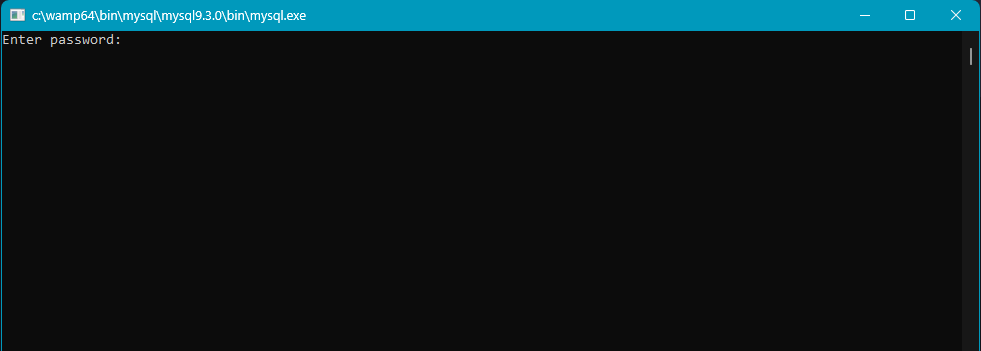
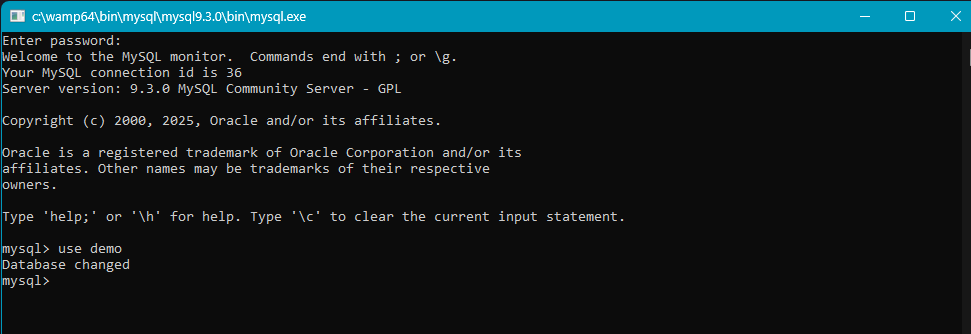
The MySQL console opens. You will be prompted to enter a password, just press enter.
After that type use followed by the name of the database you created in the first step. This is the database where the SQL table will be imported. If the database exists, you'll see a message confirming that the database has changed.
To import the database, use the source command followed by the full path to your .sql file, then press Enter.
Note: Windows uses backslashes (\) for directory or file paths, so be sure to switch them to forward slashes (/). For instance, when you copy a path from Windows Explorer, it will typically look like:
"C:\Users\garyv\Downloads"
To use the corrected path, remove the quotation marks and convert the slashes:
C:/Users/garyv/Downloads
Example of an import command would be:
source C:/Users/garyv/Downloads/example.sql
And yes, folder names can include spaces like:
source C:/Users/garyv/Downloads/New folder/example.sql or source C:/Users/garyv/Documents/Downloads/example.sql
See screenshot below as an example.

After pressing enter you will see multiple short messages scrolling on the screen. You must wait until you see the prompt mysql> 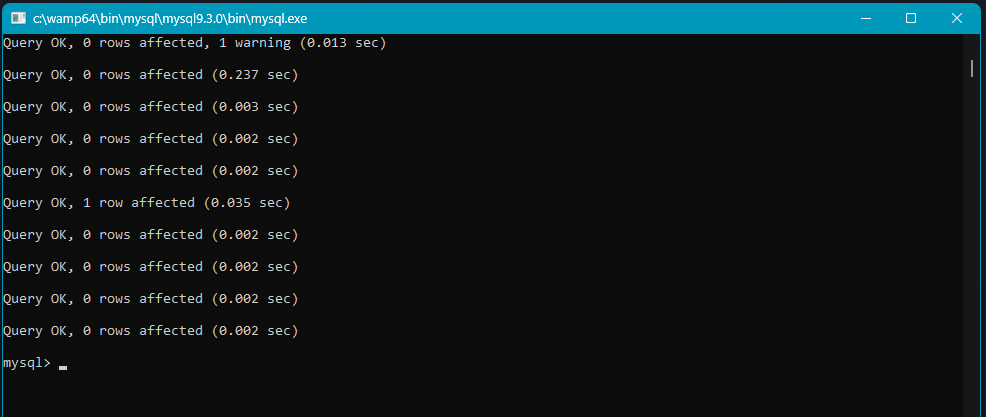
That's all there is to it.
Note! CSV files, whether compressed or not, as well as compressed SQL files (e.g., example.csv.gz), will not be imported. Attempting to import such files causes the console window to crash, requiring you to restart.
Summary
Example of how to import the following two SQL tables into a database:
example_abc.sql
example_xyz.sql
You’ll need to run two Console commands use and source. They’d look something like this:
use [your database name]
source C:/Users/garyv/Downloads/example_abc.sql
source C:/Users/garyv/Downloads/example_xyz.sql
Topic last reviewed: 15/04/26