
Misaligned Data
Excel Misaligned Data in Column
See example below:
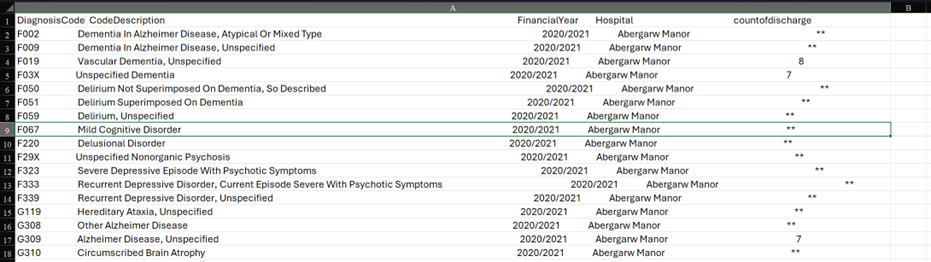
Find and replace a two spaces with one pipes or bars `|`
Press CTRL H - brings up the Find and Replace popup window
In the `Find what:` box press your keyboard space bar
In the `Replace with:` enter || (keyboard shift back slash twice)
Click on `Replace All` button
Now the Excel sheet looks will look like this:
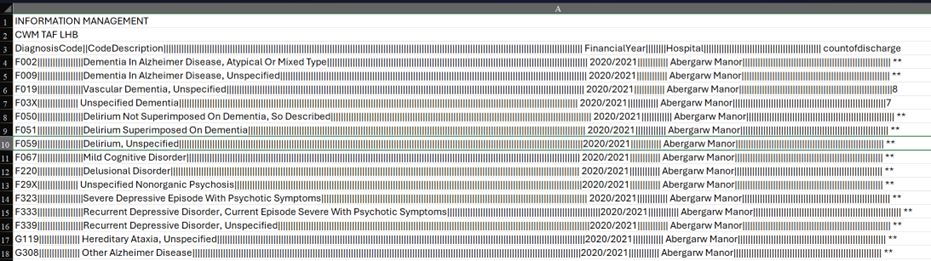
Press
Press CTRL H in order to bring up the Find and Replace popup window
In the `Find what:` enter || (two pipes)
In the `Replace with:` enter | (one pipe)
Click on `Replace All` button until a confirmation popup box, like:
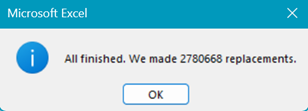
Now keep on clicking on `Replace All` button until the following appears:

The sheet will now look like this:
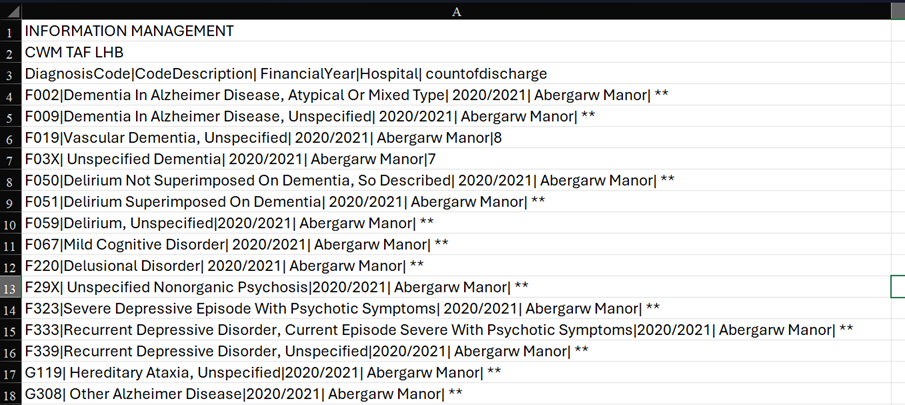
Then with your mouse select the column
Select `Data` from the Excel menu
Select `Text to Columns` from the menu
Ensure `Delimited` is selected in the popup window
Only select the radial or bullet called `Other:` and in the adjacent box type `|`
Click on next and select all the columns with your keybord and mouse – scroll to the end hold down the shift key and click on the column. All columns should now be highlighted.
Select the `Text` radial button
Click `Finish`
You will now see the fields broken into individual fields
Topic last reviewed: 15/09/25