
Email Signature
Email signatures are typically created using HTML. To craft a polished and professional one, you can easily find customizable templates and examples online.
For example:
https://www.mail-signatures.com/signature-generator/
Following the instructions 1 to 4 inclusive which are:
1.Choose email platform
2.Choose signature template
3.Enter signature detail
4.Show signature preview
Then follow How to add this email signature to Gmail
After which click on Copy and paste into your email signature setting
Note!
Under the section 3, Graphics use the Dropbox method which involves uploading your logo and getting a URL and final editing it in order to use it.
How to get a direct image link in Dropbox
Getting a direct link in Dropbox also requires a simple trick.
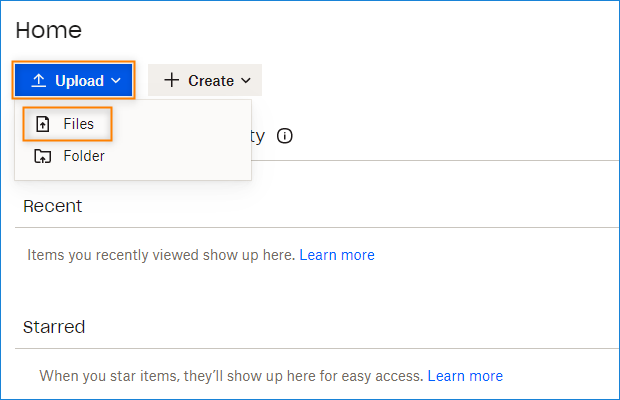
Like with other image hosting services, start with uploading your image. Drag & drop your image or click Upload > Files and choose the image from your hard drive.
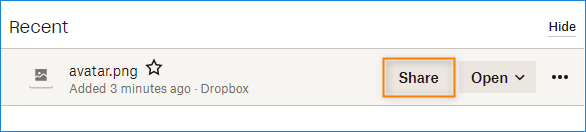
Once you upload the image, hover the mouse over it and click the Share button appearing next to the picture.
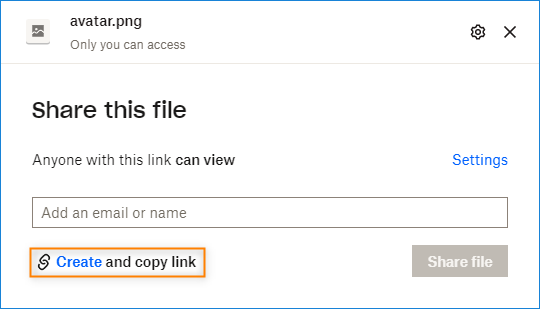
In the newly opened window, click Create and copy link. The link gets copied to your clipboard. Paste it into any text editor (or into the address bar).
The last thing you need to do is to change dropbox.com to dl.dropboxusercontent.com or dl=0 to raw=1 and visit the new URL. Either method will result in a direct image link.

An example of the correct format of a direct URL:
https://dl.dropboxusercontent.com/s/1gxdgxvj49zajft/admins%20blog.png
Examples of my gmail signature:
Kind regards
Gary
|
Gary Vismeg
|
E: gary.vismeg@gmail.com |
|
|

Topic last reviewed: 21/07/25