
Diagnostics
Start gathering the core data by fetching three spreadsheets, with some requiring customisation beforehand.
Retrieve Information from the Official Source
That's the Spanish Ministry of Health (Ministerio de Sanidad) URL: https://www.sanidad.gob.es and follow the follow instructions:
1.Fetch Spreadsheet Containing Healthcare Services Offered by hospital
○URL: National Catalogue of Hospitals
○Translate into English
○Check the when the catalogue was last updated and is required proceed to download the catalogue in excel format. Select the link Download in Excel format (Descarga en formato Excel)
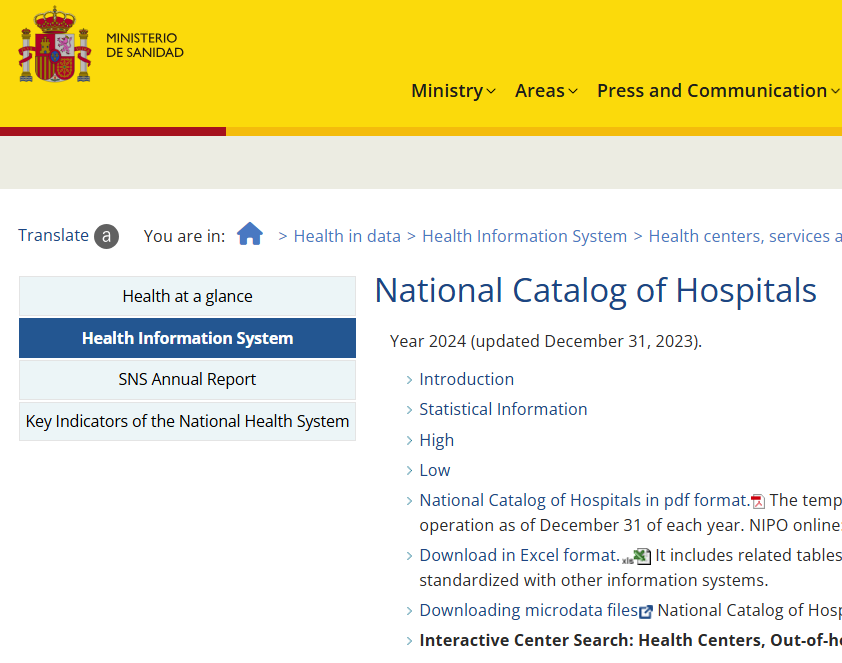
○Access the file to find several tabs. We are specifically looking at the tab labelled "DIRECTORIO DE HOSPITALES," which includes a comprehensive list of hospitals in Spain, including both public and private institutions. This data serves as the foundation for adding a hospital to our database if it is not already included. However, it does not include the websites of the hospitals.
2.Create a Spreadsheet to Compile Information on Healthcare Services Provided by the Hospital
○Click on the following URL (healthcare services offered by hospital) URL: Hostipal activity and then translate into English.
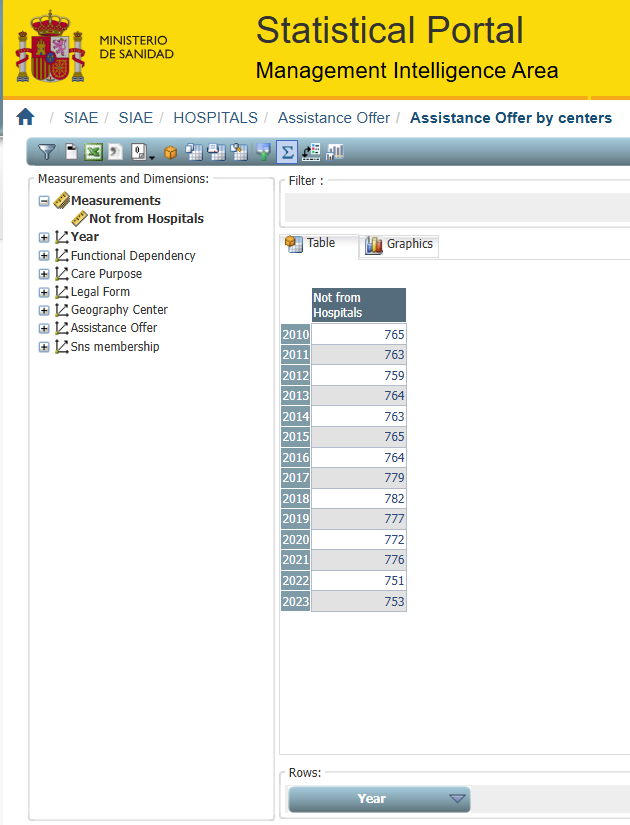
○Change year to the most current
○From the menu on the left hand side click and drag Assistance Offer over to the right hand side under measurements
○Expand Geography Center and drag Hospitals into the Rows: section which is located at the bottom and you will see something like:
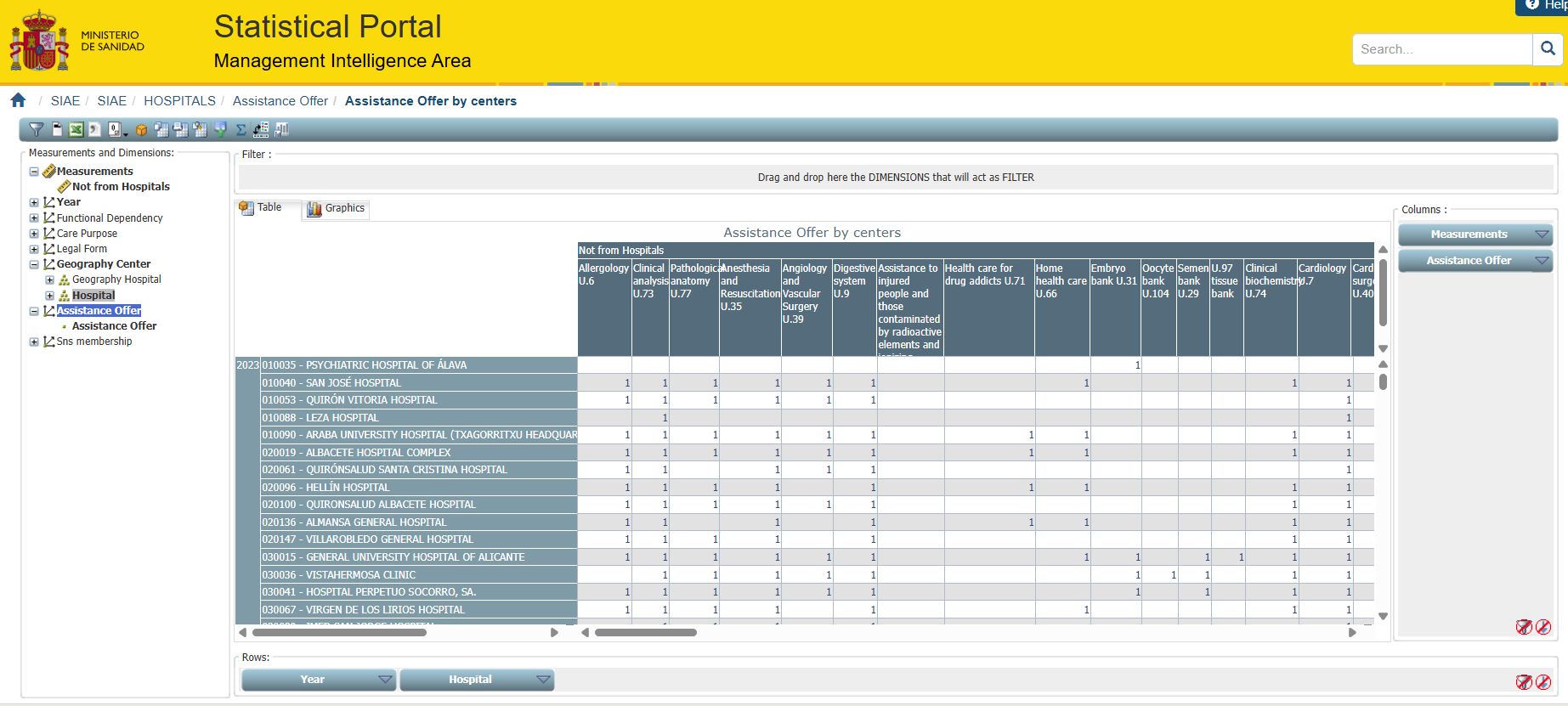
○Hide the totals by deselecting the totals from the sub menu:

○Download the spreadsheet by clicking on the sub menu spreadsheet icon:
3.Hospitalization Diagnoses by Region
○Fetch region diagnostic category code (first 3 characters of ICD10) and cases from URL: Diagnostic cases by region
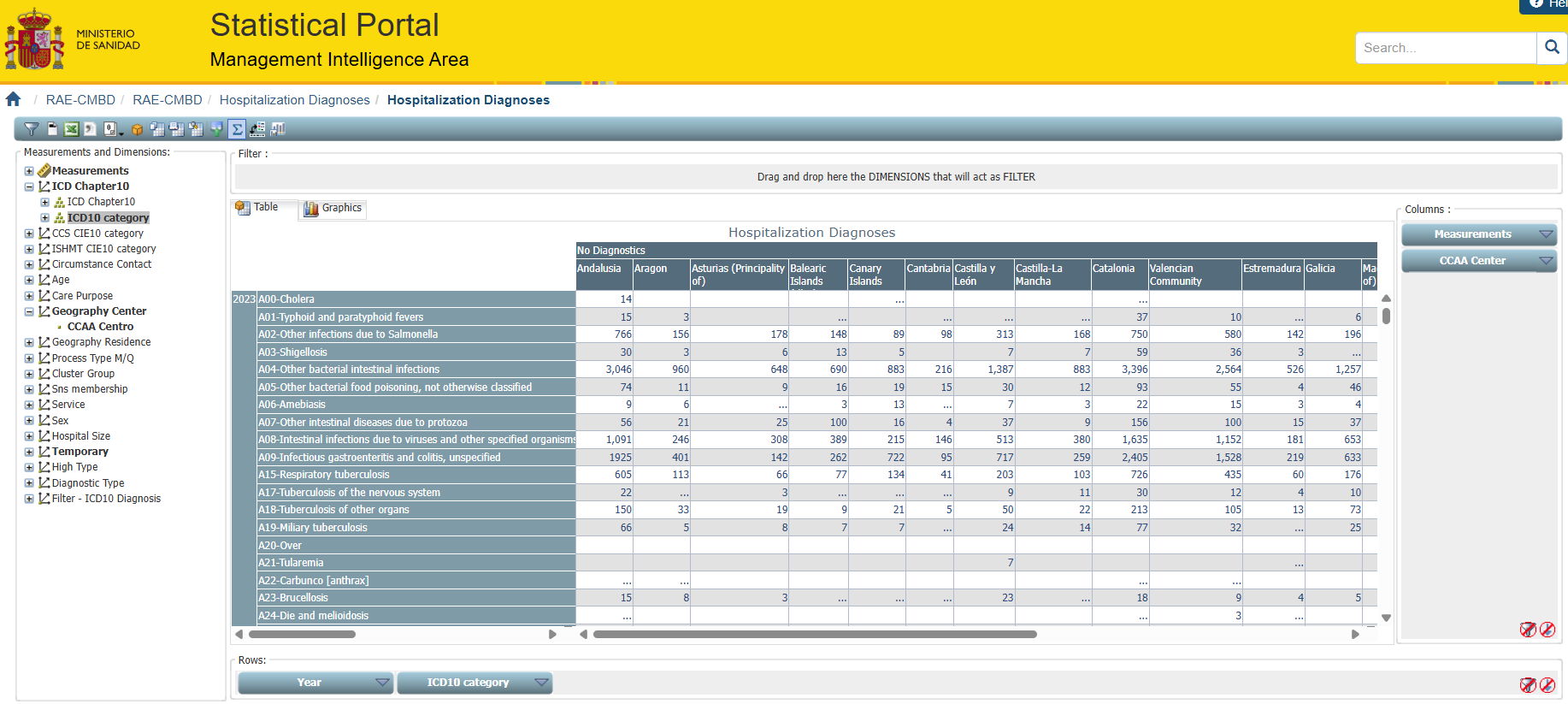
○Deselect the totals from the sub menu
○Download the spreadsheet by clicking the sub menu icon
Summary
You will end up with three spreadsheets looking like:
A directory of hospitals - CNH_2024.xlsx
Latest year of hospital activities - Tabla-bab1adf0-410f-4202-a4dc-4f7dfb29c244.xls
Latest year of regional ICD10 category together with cases - Tabla-94ea0f21-b108-43d5-b7b1-7069724ae008.xls
Manually Cleanup Spreadsheet
CNH_2024.xlsx - Ensure sheet called DIRECTORIO DE HOSPITALES is selected. Note! Clear out any decimal point / fullstops by highlighting the header (first) row, then by using excel's find and replace. Save the file as a CSV and rename table to hospital_directory_YYYY where YYYY is the date of the data obtained.
Tabla-bab1adf0-410f-4202-a4dc-4f7dfb29c244.xls - Open the .xls file and select continue (Yes) when or if Excel prompts you questioning the format and extension. Resave the file as a hospital activity 2023.xlsx and then this file. Rename table to hospital_activities_YYYY where YYYY is the year of data obtained. Make a header by removing rows 1 to 9 and insert year and name text in the blank headers. Note! Note: Before importing into WampServer, clear any decimal points (full stops) from the column headers. Do this by highlighting the first (header) row and using Excel’s Find and Replace. Also, ensure that the U89 column header contains only U89—remove any preceding text, as this will cause import errors in WampServer. At the end of the sheet remove any foot notes after the data. Save file as CSV.
Tabla-94ea0f21-b108-43d5-b7b1-7069724ae008.xls - Open the .xls file and select continue (Yes) when or if Excel prompts you questioning the format and extension. Resave as a .xlsx and at the same time rename table to regional_diag_YYYY where YYYY is the year of data obtained. Make a header by removing rows 1 to 9 and insert year and name text in the blank headers. At the end of the sheet remove any foot notes after the data. Remove the thousandth separator within the case numbers and this is usually a ".", then Save file as CSV.
Import the spreadsheets straight into WampServer
directory of hospitals imports ok
Topic last reviewed: 20/03/26